File sharing
Send Files When Email Attachments Won't Work
When an attachment is rejected or too large to send, upload the file to Yoink, copy its public link, and paste that URL into a normal email instead. The recipient opens the link in a browser to view or download the file, no attachment involved.
Updated
When a link beats an attachment
Attachment limits vary by email provider and change over time, so a file that sends fine to one person may bounce for another. Moving the payload to a link avoids the email attachment size limit entirely, since the message only carries a URL. Good candidates are a public event schedule PDF, a published press kit ZIP, or a demo build you are allowed to share openly.
The link is not friction-free for everyone: the recipient's network speed, browser settings, and any organizational download restrictions still shape their experience, so set expectations in your message. Also remember that a Yoink link is public. Anyone with the URL can access or forward the file, and it does not inherit your email's access controls. Never send customer exports, confidential drafts, or anything you would not publish.
Step 1: Pick the file you actually want to send
- Locate the exact document or archive on your computer. If you need to send a folder, compress it into a ZIP first, since the uploader accepts files, not folders.
- Confirm the file is final. If you revise it later, that is a new upload and a new link.
- Note the approximate file size so you can mention it in the email, which helps the recipient know what to expect.
Step 2: Upload and copy the link
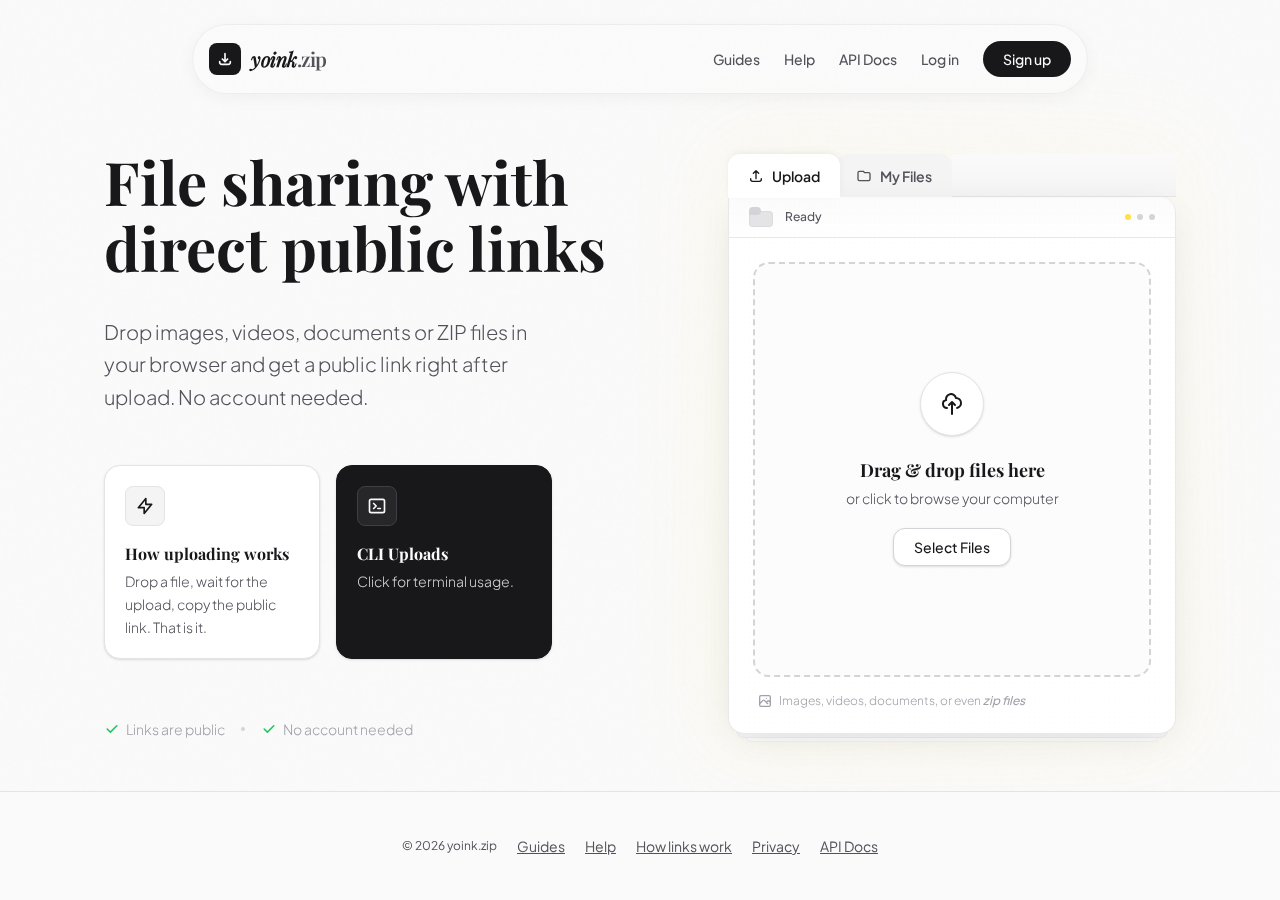
- Open the Yoink uploader in your browser.
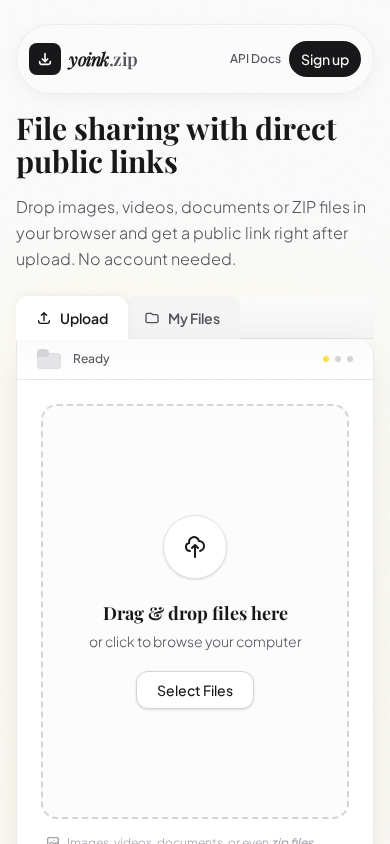
- Select Select Files and pick your file, or drag and drop it onto the page on desktop. Guest uploads work, so Google sign-in is optional.
- Start the upload with the main upload button and wait for it to complete.
- Copy the link from the completed result. It will start with
https://files.yoink.zip/.
Step 3: Verify the link before emailing
Open the URL in a fresh browser window or private tab. The file should load or offer a download without needing your session. If it only works where you uploaded, copy the link again from the completed result.
Step 4: Write the email
Give the recipient the file name, type, approximate size, and a version or date so the link has context:
Subject: Event schedule v2 (PDF, about 3 MB)

Hi Alex,

Attached files kept getting rejected, so here is the schedule as a link instead:
YOUR_FILE_URL

This is event-schedule-v2.pdf, roughly 3 MB, updated 14 September.
Depending on your browser settings the PDF may open in the browser
or download directly; use your browser's save option to keep a copy.

Thanks,
Sam
What the recipient experiences
Clicking the link opens the file in their browser. Whether it displays inline or downloads depends on the file type and their browser settings, not on the link itself. In Chrome, for example, Google's download guidance notes that right-clicking a link and choosing Save link as downloads it, while a PDF may open in a viewer first. Large files still take real download time on their network, so mention the size in your message.
Keep your own copy
Yoink does not promise a public file lifetime, and there is no self-service way to remove stored files. Keep the original on your machine or in controlled storage, and check limits and retention for the current policy. If fidelity matters, download the file back once and compare it with your original before you send the email.